
Jellyfin direct play on iPhone and Apple TV
Jellyfin direct play on iPhone and Apple TV means your server sends the file untouched and the device plays it. Ensō does that for MP4 and opens MKV with its playback engine, so your server does not have to convert what the device can handle.
Direct play, remux, direct stream and transcode in plain words
Whenever you press play, your Jellyfin server and the app agree on how the file travels. Jellyfin’s own documentation names four ways, from the least to the most work for the server:
- Direct play: the server sends the file exactly as it is. Nothing is changed, and the server hardly notices.
- Remux: the server moves the same video and audio into another container (the file format around them, such as MKV or MP4), like pouring the same drink into a different glass. Nothing is re-encoded, so it is cheap.
- Direct stream: the video stays untouched, only the audio is converted.
- Transcode: the server decodes the video and encodes it again. This is the heavy one: it needs a lot of processor or graphics power, and every re-encode costs a little quality.
The app decides which one is needed, because it tells the server what it can play. Why a server transcodes and how you can see it is the subject of Avoiding transcoding. This page is about what Ensō does so that it happens less often.
Jellyfin direct play on iPhone and Apple TV: what Ensō plays by itself
For every title Ensō first asks your server what it suggests, and tells it what the device can play: the containers MP4, M4V, MOV and MKV; H.264 and HEVC video (on iPhone and iPad also AV1, if the chip decodes it); and the audio formats AAC, FLAC, ALAC and MP3 (on Apple TV also Dolby Digital and Dolby Digital Plus). Then Ensō takes one of three routes:
| The file | What happens | Who does the work |
|---|---|---|
| MP4, M4V or MOV with H.264 or HEVC video and audio the device plays | Apple’s player reads the file straight from your server: direct play. | Your server only sends the file. |
| MKV, or any other container Apple’s player does not open, with H.264 or HEVC video | Ensō’s engine fetches the file unchanged and repackages it on the device. The video is not re-encoded. | Your device. The server only sends the file. |
| Anything else: other video formats, a file above a quality limit you set, a few special cases | Ensō asks your server for a stream it can play: remux, direct stream or transcode. | Your server. |
How Ensō opens an MKV on your device
Apple’s player, the video player built into iOS and tvOS, cannot open MKV files. A server can convert them on the way; Ensō repackages them itself, on the device. Its engine is PrismCore, open-source software by Václav Zmrhal built on FFmpeg (see the credits). It reads the MKV from your server, takes the video and audio out of it and writes them again in small pieces in a format Apple’s player understands (HLS). Apple’s player then decodes and shows them.
- The video is copied, not re-encoded. Nothing is lost on the way, and your server has nothing to do.
- Audio and subtitles are handled in the same step, see the sections below.
- Starting an MKV takes a moment, because the engine first reads the start of the file.
- The same engine runs on iPhone, iPad and Apple TV.
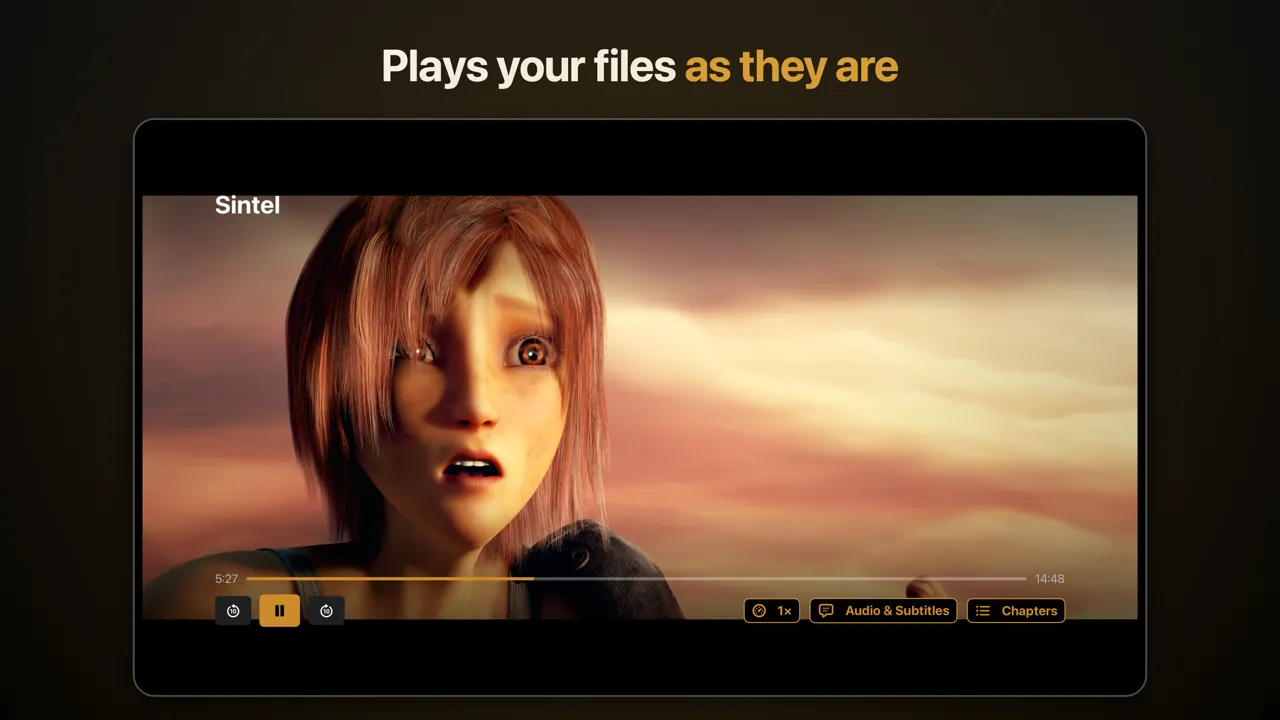
The picture shows the player on Apple TV: the buttons at the bottom right open the playback speed, the track choice (Audio & Subtitles) and the chapters.
Audio: what is passed on and what is converted
The engine passes the video on untouched. Audio needs more care, because Apple devices decode only some formats themselves. This is what Ensō does with the audio of an MKV:
| Audio format in the file | What Ensō does |
|---|---|
| AAC, FLAC, ALAC | Passed on unchanged. |
| Dolby Digital (AC-3), Dolby Digital Plus (E-AC-3) | Converted to AAC on the device. With Pass Through Multichannel Audio switched on, passed on unchanged. |
| TrueHD, DTS (also DTS-HD), Opus, Vorbis, MP3, MP2, PCM | Decoded on the device and encoded again as AAC. |
Good to know: AAC is a lossy format. Lossless tracks such as TrueHD or DTS-HD Master Audio lose some fidelity in the conversion, and the extra information of Dolby Atmos does not survive it. If your receiver or soundbar decodes Dolby Digital itself, switch on Pass Through Multichannel Audio in Settings, under Audio: Dolby Digital and Dolby Digital Plus tracks then go out unchanged. Leave it off if you are not sure: a device that cannot decode them plays noise instead of sound. It is off by default.
Choosing audio tracks and subtitles
The Audio & Subtitles button in the player lists the tracks of the file.
- Audio: Ensō starts in the audio language saved in your Jellyfin user settings. If none is saved, it takes the language of your device. You can switch the track at any time.
- Text subtitles in the file (SubRip or SRT, ASS and SSA, WebVTT, MP4 text) are read by the engine and drawn by Ensō itself. Under Settings, Subtitles, you choose the size and switch the dark background box on or off. Italic, bold and underline are kept. The colors, fonts and positions of elaborate ASS subtitles are not: the text appears at the bottom of the picture.
- Subtitles start by themselves when your Jellyfin settings ask for subtitles in a language and have not switched them off.
- Picture-based subtitles from discs (PGS and VobSub) are not shown. In a track list that comes from the server they appear grayed out and marked image-based; in the track list of an MKV that Ensō’s engine opens they are left out. If you need subtitles for such a file, add a text track (SRT) to it.
When you pick another language in the player, Ensō saves the choice in your Jellyfin user settings. The next title, and other Jellyfin apps, follow it.
When your server has to step in
Some files do not take the route over the device, or you have asked for something that needs the server. Then Ensō asks the server for a stream it can play, and the server remuxes or transcodes:
- Video that is not H.264 or HEVC, for example VP9, MPEG-2 or VC-1. AV1 plays only on iPhones and iPads whose chip decodes it; Apple TV does not offer it.
- HEVC above level 5.1. The level is a number in the file that tells how demanding the video is to decode. Ensō draws the line at level 5.1; above it the server converts the video. Some encoders write a higher level into the file even for full-HD video, so an ordinary-looking file can be affected.
- A quality limit. It lives in Settings, under Streaming & Downloads, as Max. Quality (iPhone and iPad: one limit for Wi-Fi and one for mobile data; Apple TV: one). If a film’s bitrate (the data it needs per second) is above the limit, or the server does not know it, Ensō asks for a version re-encoded to that bitrate. On mobile data, Automatic means a 10 Mbit/s data saver.
- A connection that cannot keep up. If the picture keeps stalling, Ensō steps down to a lower bitrate and the server re-encodes. Once the connection has proven fast enough, Ensō climbs back up, never above your limit; on iPhone and iPad it does that on Wi-Fi only.
- H.264 video with Dolby Digital sound in an MKV, while Pass Through Multichannel Audio is off: Ensō leaves this combination to the server, which repackages the file (and on iPhone and iPad converts the sound to AAC).
- The engine cannot start, for example because a huge file arrives too slowly: after 45 seconds Ensō turns to the server, which re-encodes bigger files to 10 Mbit/s or to your limit.
What stays on the device and what the server does
| Your server | Your device |
|---|---|
| Keeps the files and answers the app’s first question: which way suits this file and this device? | Decides which route a file takes. |
| Sends the bytes of the file. | Repackages MKV files and converts audio (the engine). |
| Remembers where you stopped, and your language settings. | Converts text subtitles and draws them. |
| Converts a file only in the cases listed above. | Decodes the picture (Apple’s player and the chip) and switches audio tracks and subtitles. |
Downloads use the same engine: an original MKV that you save is played from the file on the device. See Offline downloads.
Ensō is an independent app and not part of the Jellyfin project. Direct play, remux, direct stream and transcode are the terms of Jellyfin’s own documentation.
Questions about direct play in Ensō
Does Ensō play MKV files without transcoding?
Yes, if the video is H.264 or HEVC. Ensō’s playback engine reads the MKV from your server and repackages it on your device, so the server only sends the file. Other video formats still need the server; see Avoiding transcoding.
What is the difference between direct play and direct stream?
In direct play the server sends the file unchanged. In direct stream the video stays untouched, but something around it, usually the audio, is converted on the way. Both are far lighter than a transcode, which re-encodes the video.
Can Ensō play DTS and TrueHD tracks?
Yes, by converting them: the engine decodes them on the device and encodes them again as AAC. AAC is lossy, and the extra information of Dolby Atmos does not survive the conversion.
Can Ensō show subtitles from Blu-ray discs (PGS)?
No. Ensō shows text subtitles such as SRT, ASS and WebVTT, but it cannot display picture-based subtitles like PGS or VobSub. For such a file, add a text subtitle track.
Why does my Jellyfin dashboard show Remuxing, Direct streaming or Transcoding for Ensō?
As a rule because your server really is converting something for that session, for example because of a quality limit or a video format Ensō cannot play itself. The info icon on the device card names the reason. An MKV that Ensō repackages on the device is only sent by your server and normally shows as Direct playing. When in doubt, watch the processor or graphics load of your server, and read Avoiding transcoding.
Is it the same on Apple TV?
The same engine, the same routes. Apple TV also tells the server that it can play Dolby Digital and Dolby Digital Plus, it does not offer AV1, and it has one streaming limit instead of one for Wi-Fi and one for mobile data.