
Jellyfin client for iPhone and iPad
Ensō is a Jellyfin client for iPhone and iPad: one app for both, with a player that turns to landscape, Picture in Picture, offline downloads, grids that use the width of an iPad, and an Apple Watch app that works as a remote.
It needs iOS 16 or iPadOS 16 or later and a Jellyfin server. This page covers what is specific to the phone and the tablet; accounts, parental controls and playback have pages of their own, linked below.
One app for iPhone and iPad
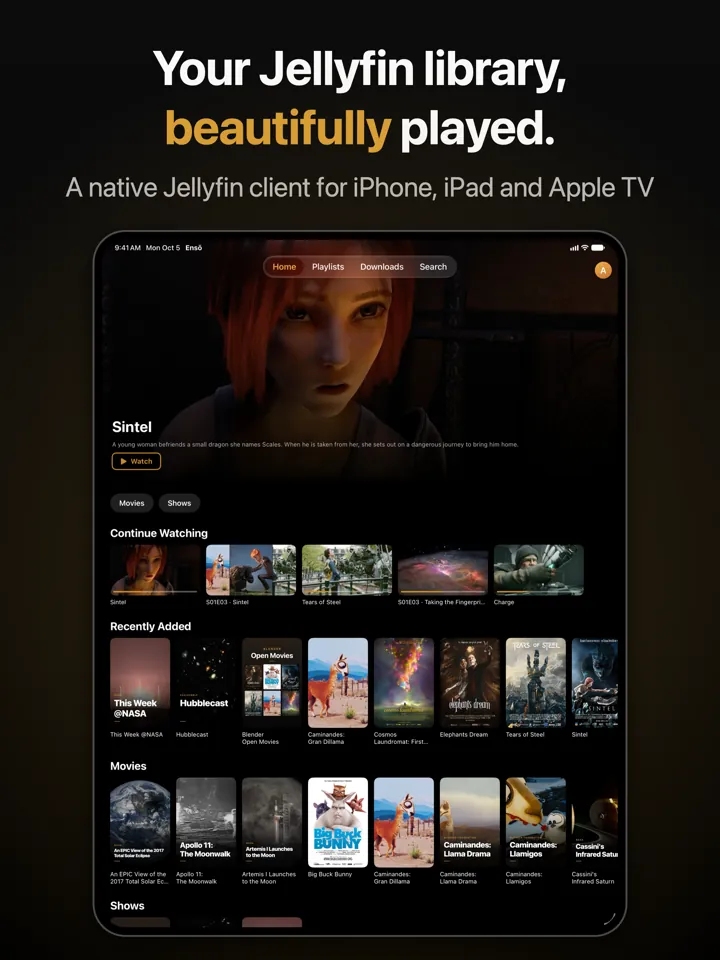
Four tabs carry the app: Home, Playlists, Downloads and Search. On an iPhone they run along the bottom of the screen; on an iPad with a recent iPadOS the bar floats at the top, as in the picture further down.
- Home starts with a banner that rotates through a few titles, then a row of chips for your libraries (Movies, Shows and so on), Continue Watching, Recently Added and one shelf for each library.
- Your profile picture in the corner of the banner, and in the top bar of the other tabs, opens the account menu: switch account, add one, Settings, sign out.
- Parental controls are in the same Settings sheet and unlock with Face ID, Touch ID or a PIN; see Parental controls.
The player: landscape, Picture in Picture and more
When a film starts on an iPhone, the screen turns to landscape by itself, and it turns back to portrait when you close the player. Everywhere else the iPhone app stays in portrait. On an iPad nothing is forced; the player follows how you hold the tablet.
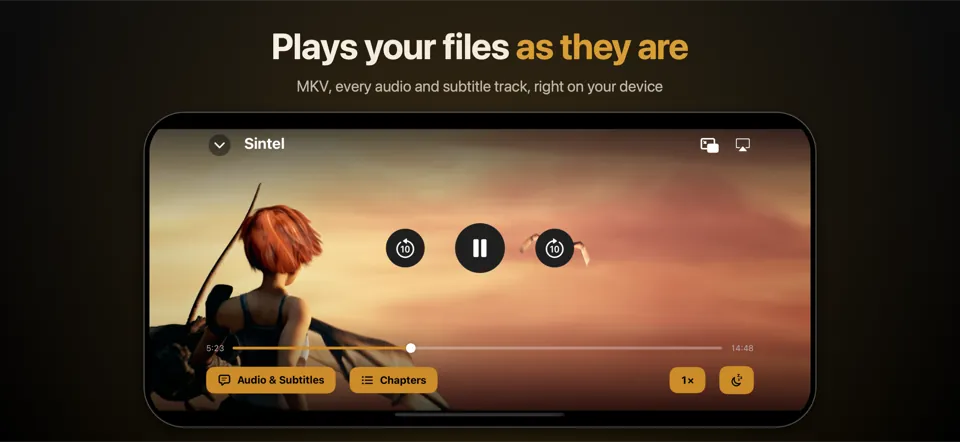
Tap the picture to show or hide the controls:
- At the top, a down arrow closes the player; on the right are the Picture in Picture button and the system’s AirPlay picker.
- In the middle: skip back, play/pause and skip forward, by 10, 15 or 30 seconds as you set it under Settings → Playback.
- Below: a progress bar that you drag, then Audio & Subtitles, Episodes (series) or Chapters (films that have them), playback speed from 0.5× to 2×, and a sleep timer.
The sleep timer pauses after 15, 30, 45, 60 or 90 minutes, or at the end of the episode or film, and fades the sound out gently. Skip Intro and Skip Recap buttons appear when your server has marked an intro or a recap, and near the end of an episode a card offers the next one; both can be tuned under Settings → Playback. While something plays, Ensō appears in Control Center and on the lock screen as what is playing, with buttons for play, pause and skipping.
Wi-Fi and cellular have separate limits: Settings → Streaming & Downloads sets a maximum quality for each, and on Automatic Ensō uses full quality on Wi-Fi and a data-saver limit on cellular. If a stream stalls, Ensō steps down by itself, never above your limit. What the player plays directly, and when your server steps in, is covered in Direct play.
Downloads and offline viewing
A film or episode page has a Download button. It asks for the quality first: the original file as your server has it, or a smaller copy, each with the size to expect and the space left on the device. On a series page you can download whole seasons or single episodes, and Smart Download keeps the next episodes of a series downloaded.
Downloads wait for Wi-Fi unless you change that in Settings, and an interrupted download carries on where it stopped, also when you closed the app in between and open it again. What you watch from a download is reported to your server once it is reachable again, so Continue Watching stays right on your other devices. If the server cannot be reached when you open Ensō, the Downloads tab opens by itself. Offline downloads explains original files, quality limits and where the files live.
On the iPad
An iPad runs the same app with the same features and turns to any orientation, upside down included. Libraries, search results and playlists are grids that fit as many posters as the screen is wide, so a landscape iPad shows many more titles at once than a phone. There are no iPad-only screens beyond that: the iPad app is the iPhone app on a larger canvas.
Where an iPad has Apple Intelligence, it gets the same sentence search, “What happened so far” and moods for smart shelves as an iPhone. Smart search says which parts need it.
Siri, Shortcuts and Spotlight
Ensō adds actions to the Shortcuts app, among them Play Title and Continue Watching. Siri knows phrases for these two, such as “Play Sintel in Ensō” or “Continue watching in Ensō”, and “Play something in Ensō” makes Siri ask which film or series you mean. With iOS or iPadOS 18 or later, Ensō also adds your films and series to the search of the device, so typing a title on the Home Screen finds it and a tap opens its page.
With parental controls on, nothing is offered to Siri or Spotlight that the app itself would hide. Siri has to recognize the name Ensō first, which does not always work; the details are on the Smart search page.
The Apple Watch app: a remote, not a player
The Watch app does not play, browse or download anything. It takes the account that the iPhone is signed in with and lists the devices of that account that are open and can be remote-controlled, such as an Apple TV, an iPhone or an iPad running Ensō, with what each one is playing. Tap a device for play/pause, next episode and stop; the Watch also shows a previous button, which Ensō’s own players ignore. The commands travel through your Jellyfin server, so the Watch needs no direct connection to the other device.
Until the iPhone app is signed in, the Watch asks you to open it. If you have two Apple TVs, give each a name when you sign in on it (Ensō asks for one), so that you can tell them apart on your wrist.
Questions about Ensō on iPhone and iPad
Which versions of iOS and iPadOS does Ensō need?
iOS 16 or iPadOS 16 or later. The Apple Intelligence features described under Smart search need iOS or iPadOS 26 and a device that supports Apple Intelligence.
Is there a separate Ensō for iPad?
No, one app runs on both. On an iPad it turns to every orientation and fits as many posters per row as the screen is wide; the screens and features are otherwise the same as on the iPhone.
Can the Apple Watch app play films?
No. It is a remote for what plays on your other devices: play/pause, next episode and stop. It cannot start a film, browse your library or download anything.
Can I watch without a connection?
Yes, what you have downloaded. If your server cannot be reached when you open Ensō, the app opens the Downloads tab by itself. See Offline downloads.
Related
Direct playWhat Ensō plays by itself and what happens when your server steps in.
Apple TVThe same app on the big screen, driven with the Siri Remote.
Smart searchSearch by sentence, “What happened so far” and Siri on the device.