
Jellyfin app for multiple users: accounts and servers
Ensō is an app for Jellyfin that handles multiple users: add as many accounts as you like, on one server or on several, and choose who is watching when the app starts. Every account keeps its own library, resume points and downloads.
Using one Jellyfin app for multiple users
As soon as Ensō knows two or more accounts, it asks Who's Watching? when the app starts. Every account is a round picture with the user's name and the server underneath it: the profile picture the user has on Jellyfin, or the first letter of the name on a color. Tap yours and you are in. The last tile, Add Account, signs in another one.
The question is asked when the app starts, not every time you come back to it, and never when there is only one account. It does not need a network, because names, pictures and your choice are kept on the device. If you would rather skip it, switch off Ask Who's Watching at Launch in Settings (the switch shows up as soon as there is a second account). Ensō then opens the account that was used last.
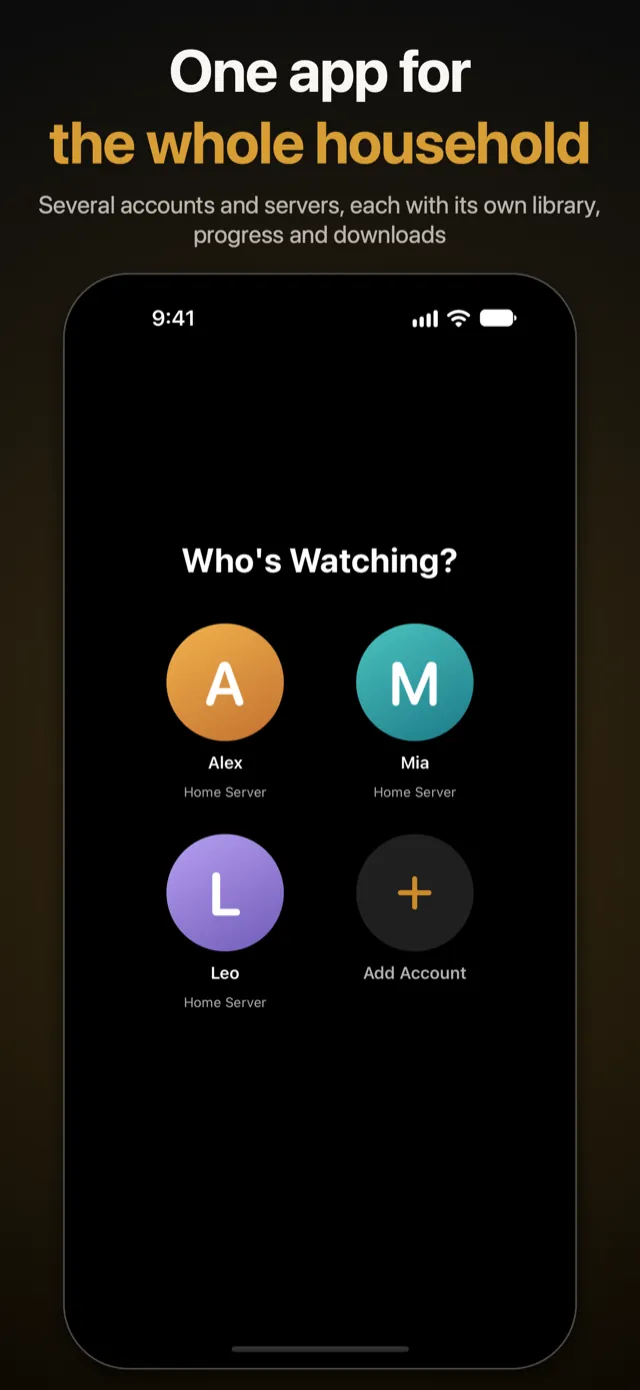
You can add accounts from that screen and from Settings → Accounts; on iPhone and iPad the menu behind your profile picture at the top of the app has Add Account as well. Signing in works as described in the guide to connecting Ensō to your server.
What each account keeps for itself
An account is one user on one server, and Ensō treats it like one person:
- Library. You see what Jellyfin shows that user on that server. Ensō never merges the libraries of two accounts, or of two servers, into one.
- Resume points and watched marks. Jellyfin keeps them for each user on the server, so Continue Watching stays personal.
- Downloads. Every account has its own list. The files themselves are shared where that saves space, as described below.
- Home layout, search and Smart Downloads. The order of the libraries on Home, the list of titles that search looks through and the series kept ready by Smart Downloads are filed under the account.
The settings of the app itself, such as language, playback, streaming and download options and the parental limit, belong to the device and not to an account. They apply to whoever is using it. The Home layout is the one exception.
Several servers in one app
Ensō has no separate list of servers. Each account knows its own server: its address and the name the server gives itself, which the Who's Watching? screen shows under the user's name. To use a second server, choose Add Account and enter that server's address. To add another person on a server you already use, enter the same address again and sign in as that person.
Ensō tells servers apart by the ID each one reports about itself, not by its address. A server reached once by its home address and once by its internet address is still one server, and signing in again as a user who is already in the list replaces that account's saved sign-in instead of adding a duplicate. Each account keeps one address, the one that worked last.
How downloads are shared between accounts
On iPhone and iPad, downloads are where accounts share something. Every account sees only its own downloads; nobody sees what somebody else saved. But a film or an episode is stored once per server: if a second account on the same server downloads something that is already on the device, Ensō does not fetch it again, and the account simply becomes another owner of the file.
Deleting a download only takes it off your list. The file leaves the device when the last owner has deleted it. How far you have watched is kept per account, so the same file can be halfway for one person and finished for another. A download that is still running belongs to the account that started it: switch to another account and it is put aside, switch back and it carries on.
Removing an account deletes its downloads, unless somebody else on the device has the same ones. How downloading works in general is explained on the page about offline downloads.
Switching accounts and the PIN that guards it
On iPhone and iPad, tap your round profile picture (on Home it sits on the big banner) and pick another account under Switch Account. The same list is in Settings → Accounts, together with Add Account. Ensō builds its screens again for the account you pick, so nothing of the previous one stays on display.
When the parental control is switched on and locked, changing accounts needs its PIN: switching to another account, adding one and removing one. Accounts that ask for the PIN carry a small lock. The account that is already in use can be chosen again without it. After a switch the control locks again, so the PIN opens the door for the change and not for whatever the next person wants to watch. The age limit itself is explained on the parental controls page.
If a server stops accepting an account's saved sign-in, the account stays in the list, marked Needs to sign in again, with its downloads and settings. Tap it and sign in again. Sign Out and Remove Account take an account away for good: Ensō asks the server to end that sign-in (when the server can be reached), forgets it and deletes what the app kept for that account.
Accounts on Apple TV
The Apple TV app asks the same question at launch and puts the focus on the account used last, so one press of the remote's select button is enough for the usual viewer. Hold the select button on an account to remove it. The account list and the switch for the question at launch are in Settings, which the profile button at the top opens.
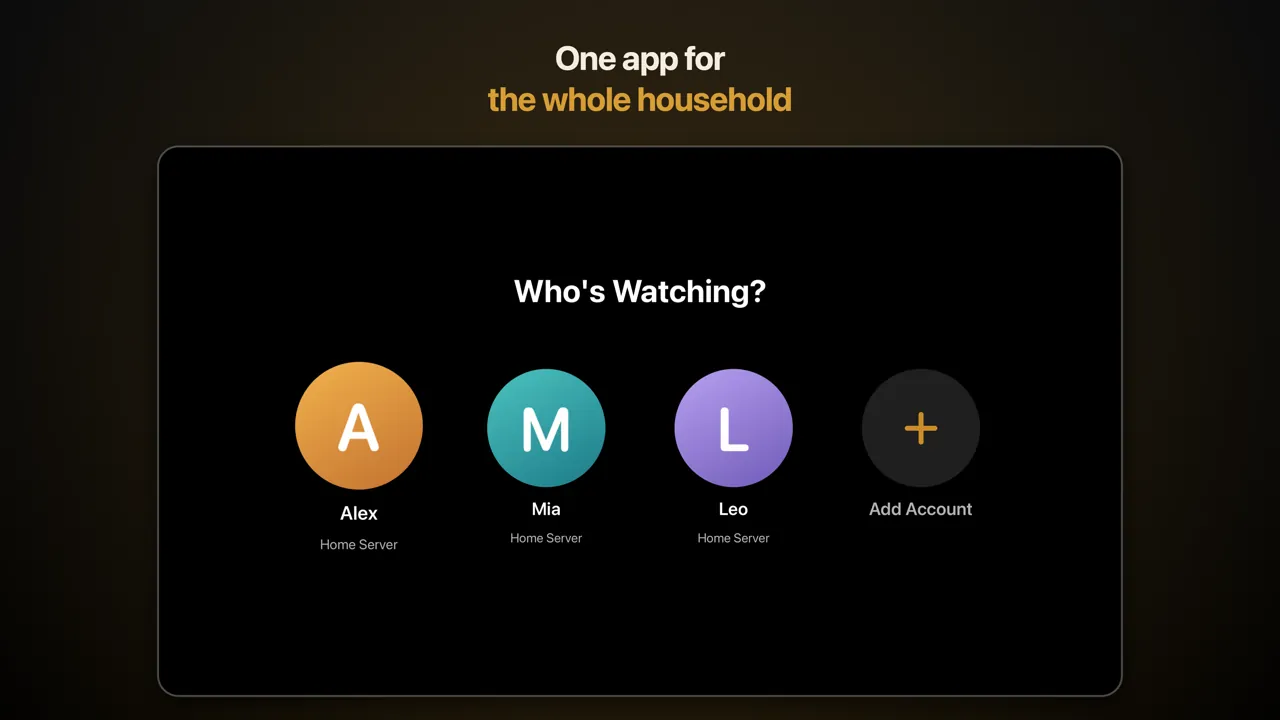
Ensō does not use the Apple TV's own user profiles. It keeps its own list of accounts, and the Who's Watching? screen is how you choose one. Downloads exist only on iPhone and iPad, so on Apple TV an account means its library and its history. More about the big screen is on the Apple TV page.
What Ensō stores, and where
Each account is saved in the iOS Keychain, the system's encrypted store for secrets: the server's address and name, your user name, a reference to your profile picture and an access token, which is what Jellyfin hands the device after you sign in. Your password is not saved. Ensō sends it to your server once to get that token. The Keychain items stay on this device and are not copied to your other devices.
The settings of the app are kept in its preferences, downloads in its own folder, and caches such as artwork and the list of titles for search in its cache. Your resume points and watch history live on your server. The Apple Watch remote has no keyboard of its own, so the iPhone passes it the sign-in of the account in use, and the remote follows when you switch.
Questions about accounts in Ensō
Can I use Ensō with more than one Jellyfin server?
Yes. Every account belongs to one server, and you can add accounts on as many servers as you like. Libraries are not merged: you switch between accounts, at launch or from the profile menu, and each one shows what that user sees on that server.
Do I have to sign in again each time I switch accounts?
No. Ensō keeps each account's saved sign-in in the iOS Keychain, so choosing an account opens it straight away. Only an account whose sign-in the server no longer accepts asks to sign in again. With the parental control on, switching asks for the PIN first; see parental controls.
Who can see my downloads?
Only your own account. If another account on the same server downloads the same film, the file is stored once and both accounts own it; deleting it removes only your claim. Offline downloads explains how downloading works.
Does Ensō use the Apple TV's own user profiles?
No. Ensō keeps its own list of accounts and asks Who's Watching? when the app starts. Everyone who uses that Apple TV picks their account there.
Does Ensō store my password?
No. If you sign in with a password, it goes to your server once and the server answers with an access token. Ensō keeps that token, not the password, in the iOS Keychain.