
Jellyfin natural language search in Ensō
Ensō adds a natural language search to your Jellyfin library: type “comedies under 90 minutes” or “short films from the 90s” and get the matching films and series. It runs on the device, and Apple Intelligence adds more where a device has it.
“Smart” covers four things in Ensō: a search that reads sentences, a recap called “What happened so far”, shelves on the home screen and connections to Siri and Spotlight. Some work on every device, some need Apple Intelligence, and the Apple TV has no on-device language model at all. This page says which is which, and what Ensō does when a feature is not there.
Jellyfin natural language search: what you can type
Open Search and type a sentence instead of a title. Ensō turns what it understands into conditions and shows them as chips under the search field, labeled “Understood as”; the matching films and series appear below. In the picture, “animation under 15 minutes” became the genre Animation and a length of under 15 minutes. If a chip is not what you meant, type the sentence differently.
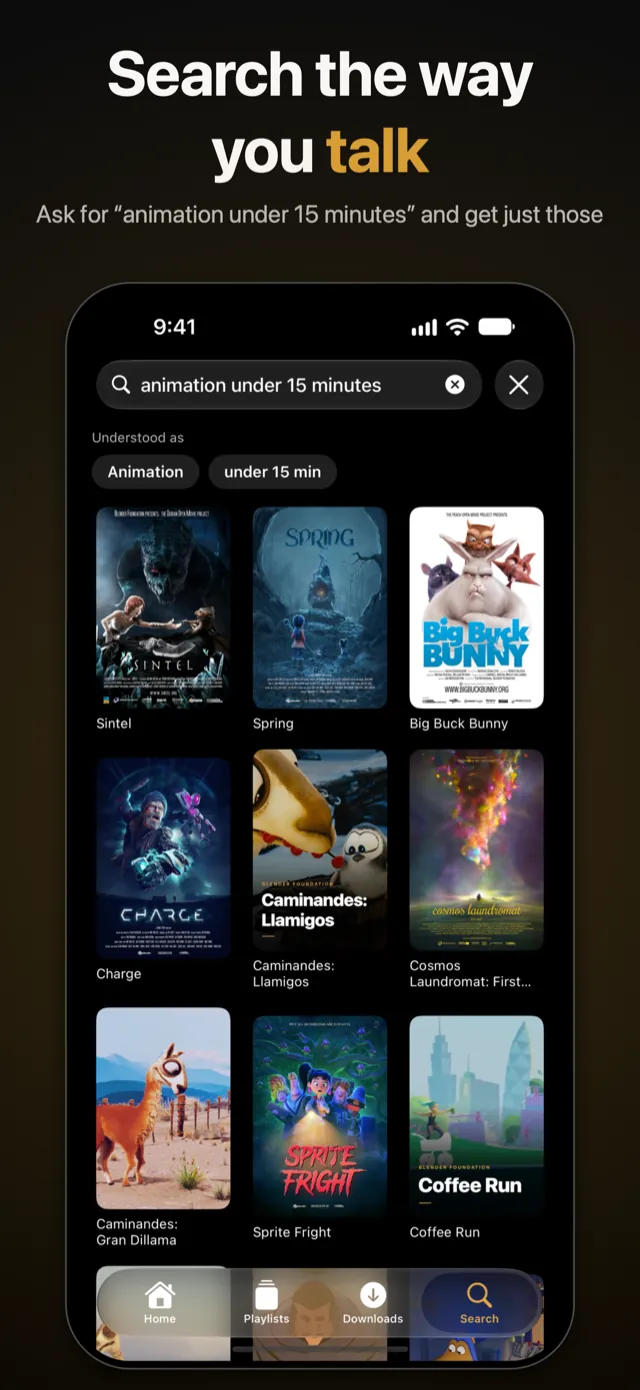
The rules behind the chips read English and German. They know:
- Films or series: “movies”, “films”, “series”, “shows”.
- Genres, in the spelling your library uses: comedy, action, thriller, horror, science fiction, crime, animation, documentary, romance and more. “Exciting” stands for Action, Thriller, Crime, Mystery and Adventure together, and “no horror” or “without horror” leaves a genre out.
- Length: “under 90 minutes”, “over 2 hours”, “short” (under 95 minutes), “long” (over 130) and “not too long” (under 110).
- Years: “since 2015”, “before 2000”, “the 90s” or “1990s”, and “new” for the last few years.
- Age: “for kids” (rated for children), “family night” or “for the family” (rated up to 12, plus the Family genre) or an age such as “age 12”.
- Rating and order: “highly rated” and “well rated” mean 7.5 stars or more, highest rated first; “newest” sorts by year.
- Watched or not: “unwatched”.
Words that are not conditions are looked for in a title and its description. When that finds nothing, Ensō sets them aside so that you still get results, and says so under the chips (“Not used: …”). Plain titles keep working too, and they forgive slips: “swat” finds S.W.A.T., “spiderman” finds Spider-Man and “breking bad” finds Breaking Bad. The search covers films and series, not single episodes.
How Ensō reads a sentence
There are two steps. The first is a set of fixed rules. It works at once on every iPhone, iPad and Apple TV, needs no language model and knows German and English only.
The second step needs Apple Intelligence. If a sentence has at least three words, no title is called like that and the rules left words they could not explain (“something cozy with dogs”), Ensō asks the language model of the device to read it, a moment after you stop typing. The screen says “Apple Intelligence is reading the request …” while it works, and a sparkle next to “Understood as” shows that the model’s reading is in use. This is also how sentences in other languages are understood, as far as the model knows the language.
The model only fills in a form: kinds, genres from your library’s own list, length, years, stars, age, watched or not and a few keywords. Ensō checks the answer. Conditions that the sentence never mentions are dropped, genres are matched in every spelling your library has, made-up keywords are removed, and the model’s reading replaces the rules’ only if it finds about as many titles. The results always come from a copy of your film and series list (name, description, genres, length, year, ratings) that Ensō keeps on the device and refreshes in the background. That is why results appear as you type, and why the model never searches your server and cannot invent a title.
Where it works: devices, systems and languages
“With Apple Intelligence” means an iPhone or iPad model that supports Apple Intelligence, iOS or iPadOS 26 or later, Apple Intelligence switched on in the system settings, the on-device model downloaded, and an app language that the model supports. Apple lists the supported devices and languages on its Apple Intelligence page. You do not have to check any of it: Ensō asks the system and shows only what is available.
| Feature | iPhone and iPad with Apple Intelligence | iPhone and iPad without it | Apple TV |
|---|---|---|---|
| Sentences read by rules (German and English) | Yes | Yes | Yes |
| Sentences read by the language model (other wordings, other languages) | Yes | No | No |
| “What happened so far” | Yes | No | No |
| Smart shelves from genre, length, rating and year | Yes | Yes | Yes |
| Moods for the shelves | Yes | No | No |
| Suggested age ratings for titles that have none (see Parental controls) | Yes | No – set by hand | No – set by hand |
When Apple Intelligence is missing, switched off or still getting ready, the search reads sentences by rules and finds titles by name, “What happened so far” does not appear and the shelves use genre, length, rating and year alone. On iPhone and iPad, Settings has an Apple Intelligence section, shown only on devices that could have it, with the switch “Use Apple Intelligence” and a status line (available, turned off in the system settings, or the model is still being prepared). Switch it off and Ensō uses no model at all.
The language matters in one more place. In a language other than German or English, the empty search shows its hint and its examples only where the model of the device can read that language. Searching by title works in every language of the app.
“What happened so far”: a recap without spoilers
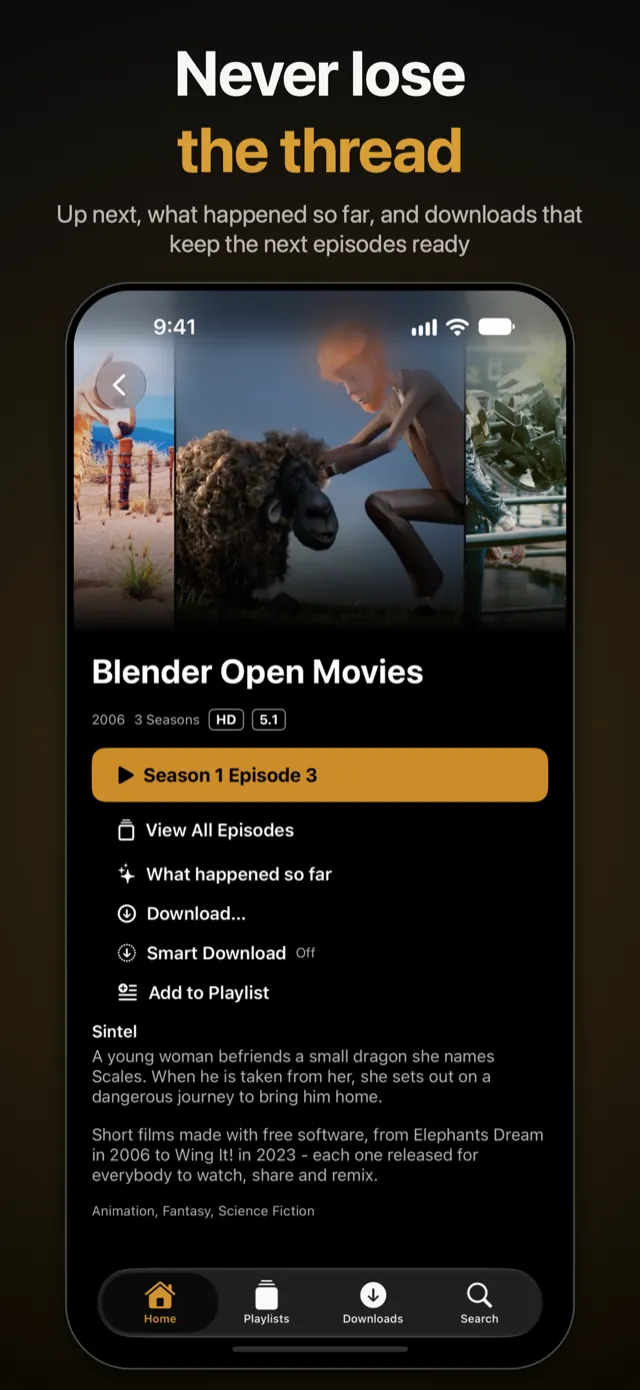
On the page of a series or an episode, a row with a sparkle, “What happened so far”, sits under the Play button. It appears on iPhone and iPad where Apple Intelligence is available, and not for a first episode. Tap it and the language model of the device writes a short recap in the language of the app, from the series’ description and the descriptions of the episodes before the one you are about to watch. It never sees the description of that episode or of a later one, so it cannot give away what is coming.
The recap is only as good as the descriptions in your library. The most recent earlier episodes come first, as many as fit into the small window of the on-device model. An episode without a description cannot contribute, and if none of the earlier ones has one, the sheet says there is nothing to sum up yet. If the model declines to write about a title, the sheet offers Retry. Not to be confused with the “Skip Recap” button of the player, which skips a recap that your server has marked at the start of an episode.
Smart shelves on Home
Smart shelves are off until you switch them on under Settings → Home → Smart Shelves, on iPhone, iPad and Apple TV. Six shelves can appear. Each shows up only when at least four of your titles fit, holds up to 20 titles and puts the better rated first:
- Family Night: rated for up to 12 (titles without a rating are left out), no longer than 135 minutes, and in the Family genre, or rated for children and in the Animation genre.
- Short and Good: films of up to 100 minutes with 7.0 stars or more.
- Exciting: Thriller, Action or Adventure.
- For a Laugh: Comedy.
- Dark and Mysterious: Horror, Crime or Mystery.
- New and Good: from this year or the two before, with 7.3 stars or more.
With Apple Intelligence on iPhone and iPad, the model also gives each title up to two moods from a fixed list of ten (exciting, funny, dark, scary, heartwarming and so on), and the shelves use them next to the genres. It works in the background while you use the app, shows a progress line in Settings (“Recognizing moods: 12 of 340”), keeps the result on the device and asks again only for new titles. The shelves contain only what your parental controls let through.
Siri, Shortcuts, Spotlight and Visual Intelligence
These connections use the system’s own App Intents. They exist on iPhone and iPad, they read your titles from the copy on the device, and with parental controls on they only know what the app itself shows. Siri, Shortcuts and Spotlight work without Apple Intelligence.
- Siri and Shortcuts. Ensō adds actions to the Shortcuts app, among them Play Title and Continue Watching. Siri knows phrases for these two, such as “Play Sintel in Ensō”, “Continue watching in Ensō” and “Play something in Ensō” (Siri then asks which film or series you mean). The phrases exist in every language of the app; Siri itself understands only the languages Siri supports. Siri is told about up to 400 of your titles, starting with what you are watching or watched last and your favorites, then the better rated ones.
- Spotlight. With iOS or iPadOS 18 or later, Ensō adds your films and series to the search of the device. Typing a title on the Home Screen finds it, and a tap opens its page. While parental controls are on, nothing is added.
- Visual Intelligence. On an iPhone that has Visual Intelligence (iOS 26 or later), Ensō offers its titles to it: point the camera, or a screenshot, at a poster, a cover or a title card, and matching titles of your library come up. “More results” opens the search of Ensō.
Voice control is the least predictable part. Siri has to recognize the name Ensō first. In tests in German, speech recognition heard it as “Enzo” and swallowed small words like “in”, so Ensō registers “Enzo” and the spelling without the macron as alternative names, and every phrase also works without “in”. If Siri still does not pick the app up, the search field and the Shortcuts app do the same job.
What stays on your device
Everything on this page that uses a language model runs on the device: it is the model built into iOS and iPadOS. The app says so itself in Settings: it all happens on this device, and no titles or descriptions are sent anywhere. None of this needs a server of Ensō’s own: the titles and descriptions come from the Jellyfin server you entered, and the reading happens on the device. Siri, Spotlight and Visual Intelligence are Apple’s own features; Ensō only hands them its titles, and with parental controls on, titles that are hidden in the app are not handed over.
Questions about smart search
Does the sentence search need Apple Intelligence?
No. The rules read German and English sentences on every iPhone, iPad and Apple TV. Apple Intelligence adds the reading of other wordings and other languages, and also “What happened so far”, moods for the smart shelves and age suggestions for unrated titles.
Is there a smart search on Apple TV?
Yes, by rules, in German and English: “comedies under 90 minutes” works there too. tvOS has no on-device language model, so the Apple TV has no model reading, no recap and no moods. See Apple TV.
Does the sentence search send my searches or my library anywhere?
No. Sentences are read by rules or by the model of your device, and the results come from a copy of your film and series list that Ensō keeps on the device. The app says so in Settings: it all happens on this device, and no titles or descriptions are sent anywhere.
Why is there no Apple Intelligence section in Ensō’s settings?
It appears only on iPhones and iPads that could have Apple Intelligence: a supported model with iOS or iPadOS 26 or later. On an Apple TV it never appears. Where it does appear, a switch turns the model off and a status line says why it is not available yet.
Why can’t I see “What happened so far” on an episode?
The row needs Apple Intelligence to be available, the switch in Ensō’s settings to be on, an app language that the model supports and an episode that has earlier ones. On a first episode it never appears, and the Apple TV does not have it at all. If the sheet opens but says there is nothing to sum up, none of the earlier episodes has a description on your server.