
Jellyfin offline downloads on iPhone and iPad
Jellyfin offline downloads on iPhone and iPad work like this in Ensō: you save a film or an episode as the original file or as a smaller copy, an interrupted download carries on where it stopped, and everything plays without a connection to your server.
How to save a film or a series on your iPhone
- Open a film or an episode and tap Download. On the page of a series the button is Download… and opens a list of all its seasons.
- Look at the list that opens: choose the original or a smaller copy, and check the expected size and the free space.
- Tap Download. The progress is in the Downloads tab.
- Play it from the Downloads tab: tap the title. That works without a connection, too.
Downloads are for iPhone and iPad. Apple TV has none: it streams from your server.
Jellyfin offline downloads on iPhone: original file or smaller copy
What you get depends on the file and on what you choose:
- The original file. A film in an MKV is saved exactly as your server has it, with every audio track and all subtitles inside. Ensō plays it from the file with its playback engine, so your server converts nothing, which matters most for big 4K files. These files play in Ensō only. A film in an MP4, M4V or MOV that the device can play as it is is simply copied and plays in Apple’s player.
- A smaller copy. If you choose a quality below the original, your server re-encodes the video (H.264, at most 1080p) and sends the result. It takes longer, but a 4K film can shrink from tens of gigabytes to a few. A copy made this way has one audio track, the one that fits your language setting, and no subtitles.
- A file the server prepares. If you switch off Download MKV as Original in Settings, the server repackages the MKV as an MP4 first, and Ensō joins the pieces into one file. Such a file has one audio track and no subtitles as well.
Choosing the quality and seeing the size first
Before anything starts, Ensō lists what each choice would take. The choices are Original and, below it, 20, 10, 6, 3 and 1.5 Mbit/s, which stand for up to 1080p, 720p or 480p. Next to each choice you see the expected size, and under the list how much space is free. Only choices that really make the file smaller are offered, and a choice that would not fit is shown in red and cannot be started.
The picture shows this list on iPhone, with the expected size of every choice, and the Downloads tab with three downloaded films.
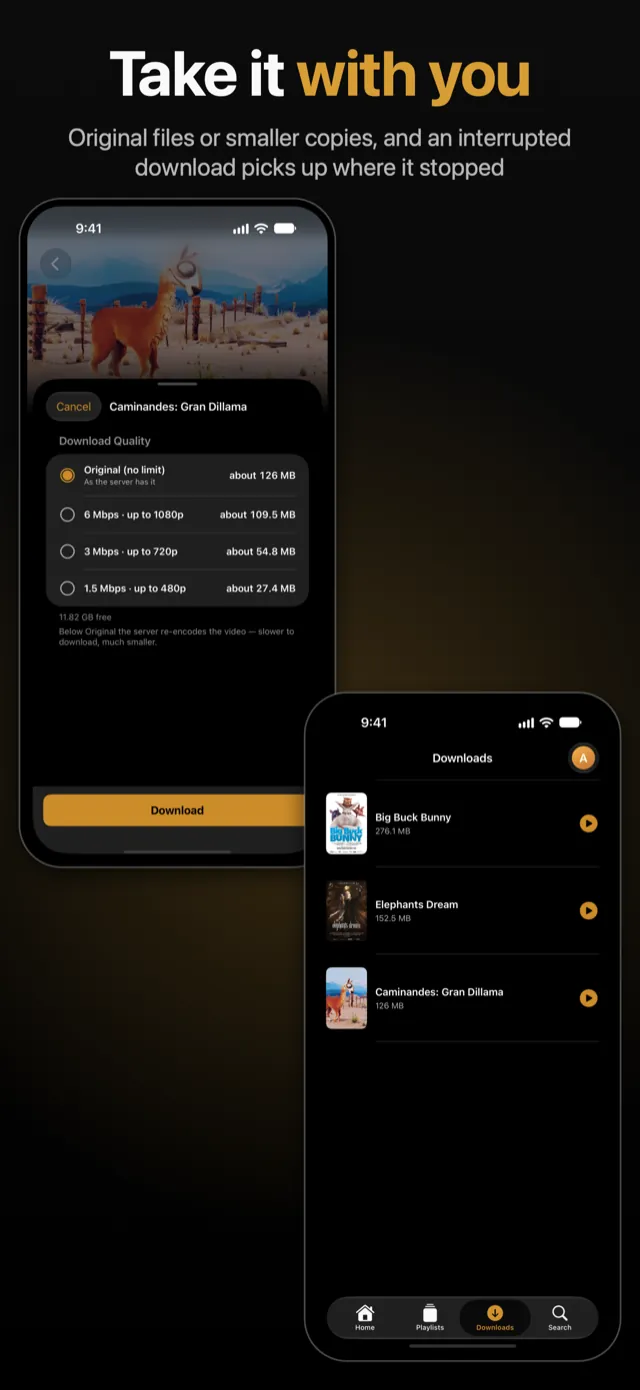
The sizes are estimates, worked out from the length of the film and its bitrate (the data it needs per second). Under Settings, Streaming & Downloads, Download Quality sets the default for new downloads. It is Original until you change it. The streaming limit Max. Quality does not apply to downloads: a download keeps the original quality unless you choose a lower one here.
A smaller copy makes your server work. It has to re-encode the whole film before it can send it, and for 4K and HDR video Ensō warns that this can take anywhere from minutes to hours, depending on the server’s hardware. An original needs no such work. More on this in Avoiding transcoding.
Series: pick seasons and episodes
The list behind Download… on a series’ page shows every season. Tap a season to fold it open or shut, tick whole seasons or single episodes, and use the menu at the top for Select All, Select Unwatched, Deselect All, Collapse All or Expand All. With many seasons only the one that matters starts open. At the bottom you see how many episodes you picked, how long they run, the expected size and the free space, with a menu for the quality. Episodes you already have, or that are on their way, are grayed out.
Smart Downloads keep the next episodes ready
The page of a series also has Smart Download. Set it to 1, 2, 3, 5 or 10 episodes and Ensō keeps that many of the next episodes on your device. It starts where you are: at the episode you have begun, or at the one after the last you finished. With Delete Watched Episodes on, which is the default, episodes you have watched are cleared away again.
The picture shows a series page with Download… and Smart Download (Off) below the play button.
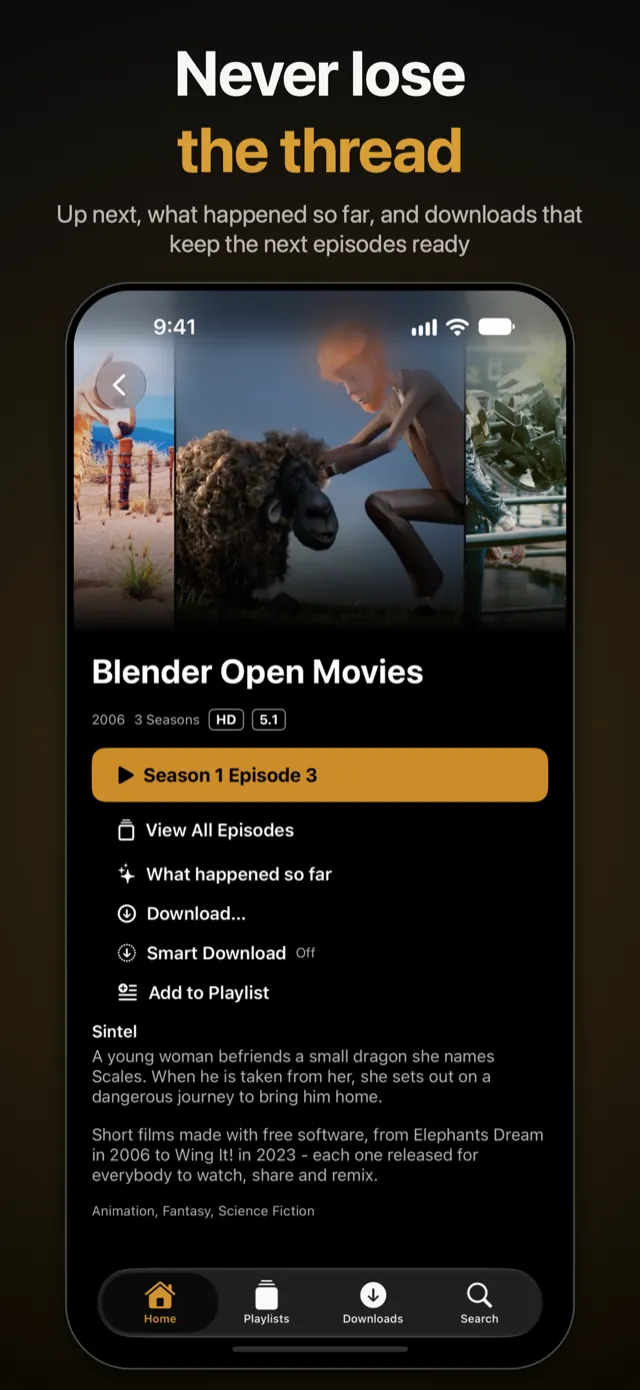
A few rules keep Smart Downloads polite:
- They fetch only on Wi-Fi: not on mobile data and not through a Personal Hotspot.
- They always leave the free space you ask for. You set it in Settings, under Smart Downloads, as Keep Free Space: 2, 5, 10 or 20 GB, with 5 as the default.
- They delete only episodes they downloaded themselves. What you downloaded by hand stays, and so does the episode that is playing.
- They use the quality from Settings. If you delete a Smart Download by hand, it is fetched again unless you switch Smart Download off for that series.
- They look at your series when you open Ensō, when you finish watching something and when you change the setting, and they work only while the app is open or playing.
Interrupted, paused or in the background
The Downloads tab shows each download with its progress and the time left, with buttons to pause or resume it and to cancel it. Canceling throws away what was fetched so far, and a failed download gets a retry button. A smaller copy first shows how far the server’s converter has got (Server is converting), as far as the server reports it, because the server sets the pace.
- Two at a time. A season or Smart Downloads go into a queue, and two episodes run at once; the others read “Waiting…”. A download you start by hand begins at once.
- The connection drops. The download waits for the connection to come back, for up to 20 minutes, and carries on from where it stopped instead of starting over.
- You close the app, or iOS does. Unfinished downloads and the queue are saved on the device. When you open Ensō again, what was running or waiting carries on from where it stopped; what you had paused stays paused. While the app is closed, nothing is downloaded.
- You leave the app. Downloads go on in the background for as long as iOS allows. On iOS 26 and later a system task shows the progress and a Stop button. On earlier versions iOS allows only a short time, and the download carries on when you come back. If the system stops the task, running downloads pause, and anything still waiting stays put until you tap Resume Queue.
- Mobile data. Download on Wi-Fi Only is on by default: on mobile data, or through a hotspot, downloads wait until you are back on Wi-Fi.
Free space is checked first
Ensō works out the space a download needs before anything is fetched. If it does not fit, the download does not start, and its row in the Downloads tab says “Not enough free space (about X needed, Y free)”, with the real numbers. A film that the server sends in pieces needs a little more than its own size while the pieces are put together; an original file needs only its own size. Under Settings, Storage you see what your downloads take and what unfinished downloads take.
Where the files live and who owns them
Downloads are kept in Ensō’s own folder on the device. The Files app shows it under On My iPhone or On My iPad; unfinished downloads are kept elsewhere and do not show there. If a file is deleted in the Files app, Ensō tells you that it is gone, and you can download it again.
If several accounts use Ensō on one device (see Accounts and servers), a file is stored once, however many accounts have it. Each account sees only its own downloads. When a second account on the same server downloads a title that is already there, nothing is fetched again: the file is added to that account. When one account deletes it, the file only disappears for that account, and it is removed from the device once no account has it any more. Removing an account removes its downloads in the same way. A download that is still running belongs to the account that started it: switch accounts and it is put aside, switch back and it carries on. Files from different servers are kept apart.
The age limit of the parental controls applies to downloads, too: titles above it are hidden in the Downloads tab, with a note that says how many, and an Unlock button.
Watching without a connection
Tap a title in the Downloads tab to play it. A copy that Apple’s player opens plays as an ordinary file. An original MKV opens in Ensō’s playback engine, which takes a few seconds (Preparing…); see Direct play. Neither needs your server, and in an original you can switch audio tracks and subtitles.
When the app starts without a connection to your server, it opens the Downloads tab and says “Offline – only downloads are available”. Where you stopped is kept on the device and reported to your server as soon as it answers again.
Questions about offline downloads in Ensō
Can I play a downloaded MKV in another app?
The original MKV is made to play in Ensō only. If you switch off Download MKV as Original in Settings, the server repackages new downloads as MP4 files instead, with one audio track and no subtitles.
Do downloads use my mobile data?
Not by default. Download on Wi-Fi Only is on, so downloads wait for Wi-Fi. You can switch it off in Settings, under Streaming & Downloads.
Does Apple TV have downloads?
No. Downloads are for iPhone and iPad. On Apple TV, Ensō streams from your server.
What happens when my iPhone is full?
Ensō checks the space before a download starts and says how much is needed and how much is free. Smart Downloads always leave the free space you chose, 5 GB by default.
Do downloads continue when I close Ensō?
They stop while the app is closed and carry on from where they stopped the next time you open it. Your queue is kept.
What does “Offline download not supported for this format” mean?
Ensō can keep a file as it is when its video is H.264 or HEVC. For other video formats it needs your server to prepare the file for the download, and if the server offers no conversion, the download is not offered. See Avoiding transcoding.