
Jellyfin app with parental controls: age limit, PIN, Face ID
Ensō is an app for Jellyfin with parental controls: you choose a maximum age rating, and titles above it, or without a rating, stay hidden on that device until the PIN or Face ID unlocks them. It works on top of your server's own settings.
How the Jellyfin parental controls work in Ensō
Ensō reads the age rating your server shows for every film and series and hides whatever lies above the limit you chose. Hidden really means hidden: those titles do not appear on Home, in the libraries or in search. The limit is a setting of the app on that device. It is not tied to a Jellyfin account, and nothing about it is stored on your server.
- Open Settings from your profile picture and scroll to Parental Controls.
- Switch on Restrict Content and choose a PIN: at least four digits on iPhone and iPad, four to eight on Apple TV.
- Pick the Maximum Rating: All Ages, Ages 6+, 12+, 16+ or 18+. Ensō starts with 12+.
- Look at Titles Without a Rating and decide what to do with them (more on that below).
- Hand over the device. Titles above the limit stay hidden until someone unlocks them.
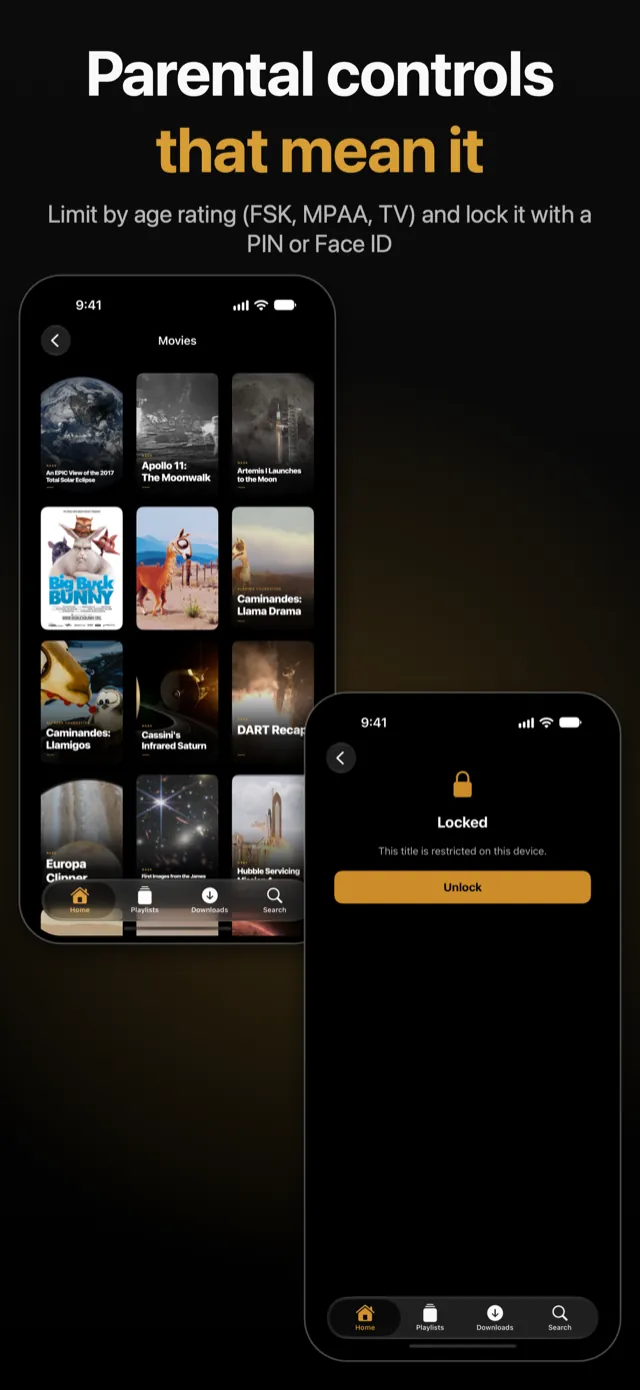
Titles above the limit are not shown in shelves, library grids or search. If one is ever reached some other way, its page says Locked and offers Unlock instead of the film.
Which ratings Ensō understands
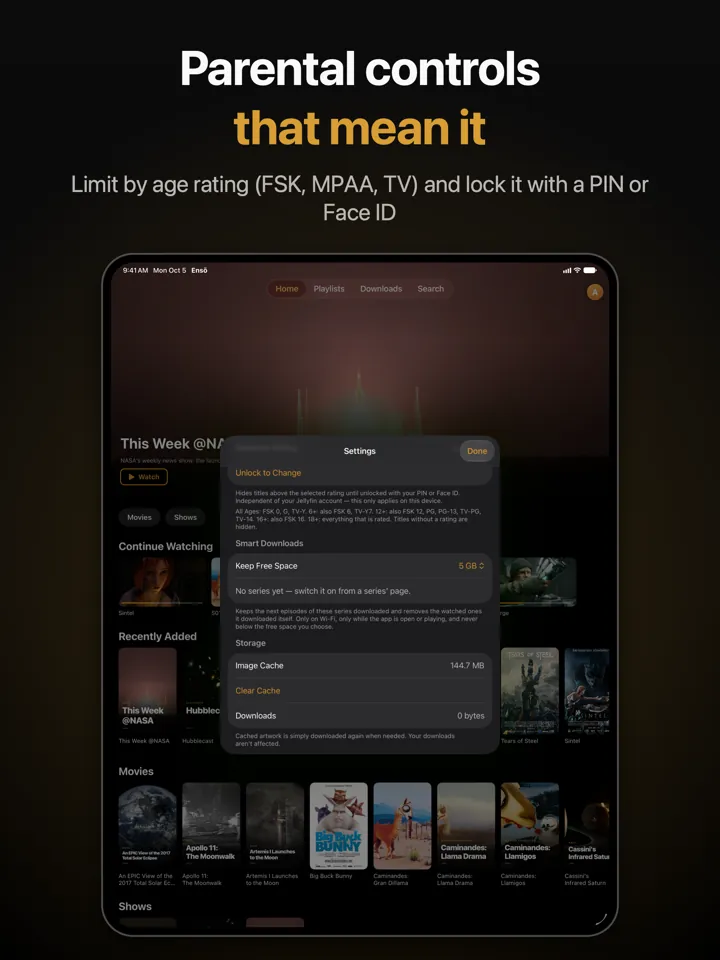
Age ratings come in many systems: FSK in Germany, G to NC-17 for American films, TV-Y to TV-MA for American television, and many more. Ensō knows every rating name that Jellyfin itself knows: 318 names from the 44 parental rating tables Jellyfin ships with. It sorts them into five steps by the age they ask for. Settings spell the steps out below the section, as the picture shows.
| Setting in Ensō | Stays visible |
|---|---|
| All Ages | FSK 0, G, TV-Y |
| Ages 6+ | also FSK 6, TV-Y7 |
| Ages 12+ | also FSK 12, PG, PG-13, TV-PG, TV-14 |
| Ages 16+ | also FSK 16 |
| Ages 18+ | everything that is rated, including FSK 18, R, NC-17 and TV-MA |
A rating written as an age works as well: 12, 16+, ab 12 or MA15+. Where countries disagree about a name, the American reading counts first. PG, PG-13, TV-PG and TV-14 come with Ages 12+, not earlier: a film that asks for parental guidance is not one to leave a six-year-old alone with.
A season or an episode usually has no rating of its own and follows its series. Collections, folders and playlists have no age rating either; the titles inside them are judged one by one.
Titles without a rating
A title with no rating, or with one Ensō cannot read, is not treated as suitable for everyone: while the control is on, it stays hidden like a title above the limit. A library can have some, home videos or specials for example.
Under Parental Controls → Titles Without a Rating you see them in one list and say, title by title, from which age each is fine. From then on it counts as if it carried that rating. A title left on Not set stays hidden, and the decision for a series covers its episodes. What you decide is kept for the account you are signed in with.
On devices where Apple Intelligence is available, the list can also make suggestions: the model on the device reads the genre and the description and proposes an age. A suggestion only counts once you accept it, and Accept All Suggestions asks once more before it applies them. Where Apple Intelligence is not available, on Apple TV and on devices that do not support it, you decide by hand.
PIN, Face ID and the lock
Ensō asks for the PIN whenever you unlock something: a locked title, the parental settings or a change of accounts. On iPhone and iPad it offers Unlock with Face ID first (Touch ID instead, on devices that have it) and always leaves the PIN field available; you can switch Face ID off under Parental Controls. Ensō keeps only a hash of the PIN in the Keychain, never the PIN itself.
An unlock lasts until you tap Lock Again in Settings or close the app. Ensō does not lock again by itself when you leave the app or lock the screen, so close it when you hand the device over. The settings are locked as well: with the control on, the section shows only that it is on, the current limit and Unlock to Change, so nobody can switch the control off, raise the limit or change the PIN without the PIN.
Apple TV has no Face ID and no device passcode that an app can ask for. It uses a number pad on the screen that the Siri Remote can drive, with four to eight digits.
If you forget the PIN, Forgot PIN? is the way out. On iPhone and iPad it asks for the device passcode (or Face ID) and then turns the control off and deletes the PIN. On Apple TV, Sign Out and Reset signs every account out of that Apple TV, turns the control off and deletes the PIN, so only someone who can sign in again can set it up anew.
What the limit covers
The limit is applied wherever Ensō lists or opens a title:
- Home: Continue Watching, Recently Added and the big banner on top.
- Libraries and playlists: every grid and every list.
- Search, including searching with a sentence (see smart search).
- A title's page and its Play button. The page is checked, and the exact episode is checked again before a stream starts.
- Downloads on iPhone and iPad (see offline downloads): a film saved for offline is no way around the lock, so titles above the limit disappear from that list too, with a note of how many are hidden.
- Siri and Shortcuts: Ensō's actions only look for titles that the app itself shows.
- Spotlight on iPhone and iPad: while the control is on, nothing from your library is put into the system's search.
- Accounts: switching, adding and removing accounts needs the PIN, as described on the page about accounts and servers.
What it cannot do
Ensō's parental control is a family guard, not a security system. Know its limits before you rely on it:
- It lives in this app on this device. A child with another Jellyfin app, with the web interface in a browser or on another device sees everything the Jellyfin account may see. Nothing is stored on your server.
- It is one limit per device. It applies to every account in the app and cannot be set differently for two children.
- It trusts the ratings on your server. A film with a wrong rating is treated as its rating says; one without a rating is hidden. Fix wrong ratings in Jellyfin.
- An unlock stays until the app is closed or you lock again. Nothing locks it when the screen goes dark.
- Whoever knows the device passcode can switch it off. On iPhone and iPad, Forgot PIN? accepts the passcode of the device.
- It cannot hide files. Downloaded films are files in Ensō's folder, which the Files app can show. The limit hides titles inside Ensō, not those files.
- It does not survive deleting the app. The on/off switch is stored with the app's settings, so deleting the app and installing it again starts without the limit. If your children can delete apps, back the control up with the restrictions of the device itself.
Use it together with Jellyfin's own restrictions
Jellyfin has parental controls of its own, and they apply in every app and in the browser. In the dashboard, open Users, pick a user and look at the Parental Control tab: Maximum allowed parental rating, Block items with no or unrecognized rating information, filters by tag and an Access Schedule for the times a user may sign in and play. The Library Access tab limits libraries and devices. See Jellyfin's documentation on managing users.
A setup that works for a family combines both:
- Create a Jellyfin user for each child and set the limits there.
- Add that user to Ensō on the child's devices with Add Account.
- Switch on Restrict Content on those devices and choose a PIN the children do not know.
- Keep your own account in the app as well: switching to it asks for the PIN.
Server settings checked against Jellyfin's documentation on 7 October 2026.
Questions about the parental controls
Is the parental control linked to my Jellyfin account?
No. It is a setting of the app on that device. It applies to every account in the app, and nothing about it is stored on your server. Jellyfin's own per-user restrictions are separate; this page explains how the two fit together.
What happens to titles that have no age rating?
With the control on they stay hidden, like titles above the limit. Under Parental Controls, Titles Without a Rating lets you say from which age each of them is fine.
Can I unlock with Face ID instead of the PIN?
On iPhone and iPad, yes: Face ID is offered first, or Touch ID on devices that have it, and the PIN is always there as a fallback. You can switch it off under Parental Controls. Apple TV has no Face ID and uses the PIN only.
I forgot the PIN. What now?
On iPhone and iPad, tap Forgot PIN? and confirm with the device passcode: the control is turned off and the PIN deleted. On Apple TV, Sign Out and Reset signs every account out, turns the control off and deletes the PIN.
Can I set a different limit for each child?
Not in Ensō: the limit is one setting for the whole app on that device. Jellyfin can limit each user separately on the server, and you can add each child's user as an account; see accounts and servers.