
Jellyfin client for Apple TV
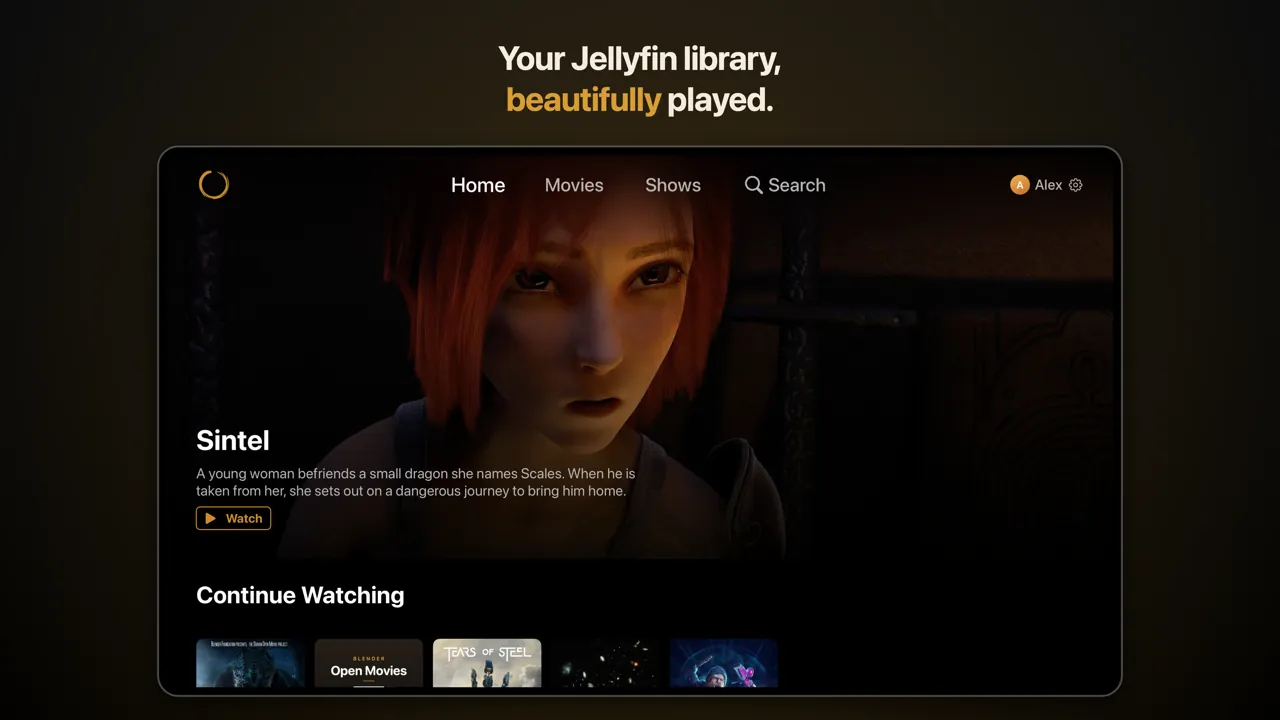
Ensō is a Jellyfin client for Apple TV that you drive with the Siri Remote: a home screen with a banner and shelves, its own player, a “Who’s Watching?” screen for the household and a PIN for parental controls.
It shares its playback engine with the iPhone and iPad app, but every screen is built for a remote and a television. You need a Jellyfin server and an Apple TV with tvOS 17 or later.
Signing in on the TV
- Enter the address of your Jellyfin server, for example
192.168.1.50ormedia.example.com. On the same screen you can give this Apple TV a name. - Open your server in a browser on a phone or computer, sign in there and enter the code that Ensō shows on the TV. Jellyfin calls this Quick Connect.
The TV then signs in by itself. If you would rather type a user name and password with the remote, choose “Sign in with password instead” on the code screen. If your server has Quick Connect switched off, there is no code screen: the Apple TV goes straight to the password screen after the address.
The name matters when you have more than one Apple TV: tvOS does not tell apps the name you gave yours in Settings, so Ensō asks, and your Jellyfin dashboard and the Apple Watch app show that name. Left empty, it is “Apple TV”. Remote access, https and what to check when the connection fails are in Connect to your server.
How Ensō works as a Jellyfin client for Apple TV
A bar at the top holds the navigation: Home, one tab for each library on your server (Movies, Shows and so on), Search, and on the right your profile picture and name with a gear that opens Settings. If the server does not answer, or a sign-in has expired, a banner appears under the bar; select it to try again or to sign in again. Search has an on-screen keyboard, and in German and English the empty search offers example sentences that you can select.
Four things on the remote do most of the work:
- The directions (touch surface or click ring) move the focus, and Select opens what has it.
- Back goes one step back: out of a title’s page, out of a panel, out of the player.
- Play/Pause pauses and resumes in the player, whatever is on the screen.
- Holding Select on an account tile offers to remove that account.
Home is built from these parts:
- A banner that rotates through a handful of titles: what you are watching, what was added recently and what your server suggests. Select it to open the title’s page.
- Continue Watching, where the focused card widens into a landscape picture (with the title’s logo, if your server has one) and every card has a progress bar.
- Recently Added, a Playlists shelf if you have playlists, and one shelf for each library. A library shelf shows up to 20 titles and, when it is full, ends with a See All card that opens the whole library as a grid.
Under Settings → Home you choose which libraries get a shelf and in what order.
A film or series page has Play, which on a series names the episode (“Season 1 Episode 3”), or Resume with a progress bar once you have started. Next to it you find Start From Beginning, Add to My List (a favorite on your Jellyfin server) and Add to Playlist, and on a series View All Episodes. A More Like This shelf lists what your server suggests as similar.
The player on the big screen
Ensō draws its own player controls. While a film plays, press Select or any direction on the remote to bring them up. They fade out after a few seconds and stay up while the picture is paused.
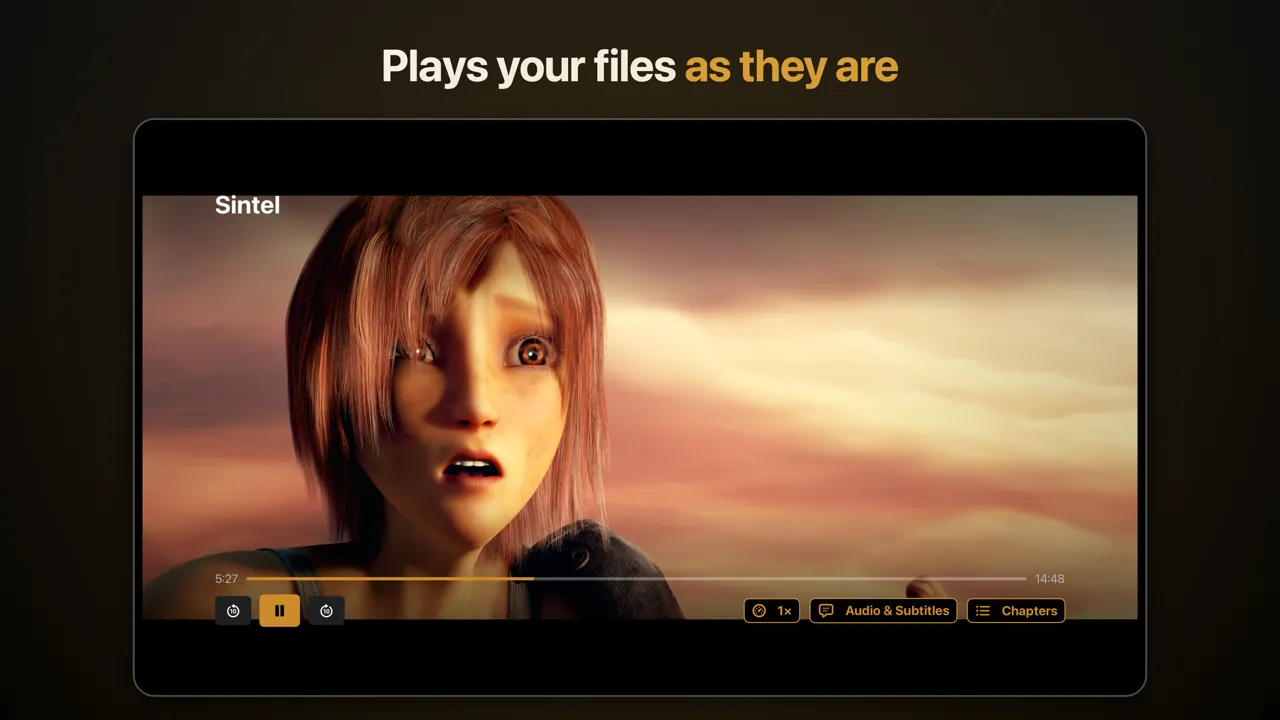
- Jumping: move up to the progress bar and press left or right to go back or forward by the skip interval, 10 seconds unless you pick 15 or 30 under Settings → Playback. The two buttons next to Play do the same.
- Speed: from 0.5× to 2×.
- Audio & Subtitles: choose a language or turn subtitles off. The choice is saved to your Jellyfin account, so your other devices follow it. Size and background box of subtitles are under Settings → Subtitles.
- Episodes (series) or Chapters (films that have them): a side panel with the seasons and episodes, so you can change episode without leaving the player.
If your server has marked an intro or a recap (Jellyfin calls these media segments), a Skip Intro or Skip Recap button appears while it plays; Settings → Playback can skip intros for you. Near the end of an episode a card offers the next one and counts down five seconds; Back cancels it. Switch off “Play Next Episode Automatically” and the card waits for you instead. In the last minutes Ensō already prepares the next episode so that it starts without a wait (“Preload Next Episode” in the same section).
What plays directly and what your server has to convert is explained in Direct play. If your server transcodes more than you expect, Avoiding transcoding says why and what to change.
Who’s Watching? on a shared TV
When more than one account is set up on this Apple TV, Ensō asks Who’s Watching? at launch. Each account is a tile with its Jellyfin profile picture (or its first letter), its name and its server. The account used last has the focus, so one press of Select is enough for whoever usually watches.
Hold Select on a tile to remove an account, or choose Add Account at the end of the row. “Ask Who’s Watching at Launch” under Settings → Accounts turns the question off. Every account keeps its own library, resume points and history; Accounts and servers explains what stays separate and what is shared.
Parental controls with a PIN
Under Settings → Parental Controls you pick the highest age rating and set a PIN of 4 to 8 digits, entered on an on-screen number pad that the remote can drive. Titles above that rating, and titles with no rating at all, disappear from Home, the libraries and the search until someone unlocks with the PIN. The unlock lasts until you lock again in Settings or close the app.
An Apple TV has no Face ID or Touch ID, so the PIN is the only way in; while the control is locked, switching, adding and removing accounts asks for it too. If the PIN is forgotten, the way out is to sign out: Ensō signs every account out of this Apple TV, deletes the PIN and switches the control off, so only someone who can sign in again can set it up anew. The control applies to this Apple TV only, not to your Jellyfin account. How it reads ratings and what it cannot protect is described in Parental controls.
Languages and sound
Ensō speaks 73 languages and variants. On the Apple TV it follows the system language; to choose another, open Settings → General → Language. The change shows at once, and for Arabic, Hebrew, Persian, Urdu and Sorani the whole interface is mirrored. Titles, descriptions and genres come from your Jellyfin server, so the app does not translate them.
For sound there is one switch worth knowing, Settings → Audio → Pass Through Multichannel Audio. Switch it on only if your receiver or soundbar decodes Dolby Digital and Dolby Digital Plus (E-AC-3) itself, otherwise you hear noise instead of sound. Off, which is the default, Ensō converts multichannel audio to a compatible format.
What is different from the iPhone and iPad apps
The Apple TV app has the same libraries, accounts and resume points, and the same playback engine. It leaves out what a television does not need or cannot do, and it has two things that the phone app does not:
| Feature | Apple TV | iPhone and iPad |
|---|---|---|
| Offline downloads | No – it streams from your server | Yes – see Offline downloads |
| Unlocking parental controls | PIN | PIN, Face ID or Touch ID |
| Picture in Picture and sleep timer | No | Yes |
| Search by sentence | By rules, in German and English | The same, plus Apple Intelligence where the device has it – see Smart search |
| “What happened so far” | No | Yes, with Apple Intelligence |
| Libraries | Tabs in the top bar | Chips below the banner |
| My List and More Like This | Yes | No |
Questions about Ensō on Apple TV
Which Apple TV do I need?
Any Apple TV that runs tvOS 17 or later. You also need a Jellyfin server that you or someone you know runs; Ensō itself provides no content.
Can I download films to the Apple TV?
No. Downloads are a feature of the iPhone and iPad app (see Offline downloads). The Apple TV streams from your server, and if the server does not answer, a banner under the top bar says so; select it to try again.
Does the search understand sentences on Apple TV?
Yes, in German and English: type something like “comedies under 90 minutes” and Ensō shows what it understood as chips above the results. An Apple TV has no on-device language model, so the Apple Intelligence parts of Smart search are not there.
What happens if I forget the parental PIN?
Ensō signs every account out of that Apple TV, deletes the PIN and switches parental controls off. Whoever can sign in again can then set a new PIN. There is no Face ID or Touch ID on an Apple TV, so the PIN is the only way to unlock.
Can I control Ensō on the Apple TV with my Apple Watch?
Yes, to a point. The Apple Watch app lists your devices that can be controlled, such as an Apple TV with Ensō open, and can pause, skip to the next episode and stop what is playing on the TV. It cannot start a film or browse your library. More on iPhone and iPad.
Related
Accounts and serversSeveral users, several servers and what each account keeps.
Parental controlsAge limits, the PIN and what they can and cannot protect.
iPhone and iPadThe player, downloads, Picture in Picture and the Watch remote.